Hi Dear BuddyPress Membership Plugin Users,
We received an users ticket which asked a question:
How to make a private buddypress community, after installing buddypress membership pro plugin?
We guess maybe many users have this question, for save users’ time to build the buddypress private network more faster, we are very happy to answer this question publicly 🙂
By default, once activate buddypress members only plugin, our buddypress membership plugin will make your site as a private buddypress network, that means, after installing this pro plugin, if guests try to access any of the restricted pages it will send them to the login page or your membership landing page, you can even restrict homepage to guests, this is based on most users requested, then you can open any pages and the whole network to uses like this way:
#1 Settings your buddypress private network landing page for guest users, and settings opened pages, below is settings on our site:
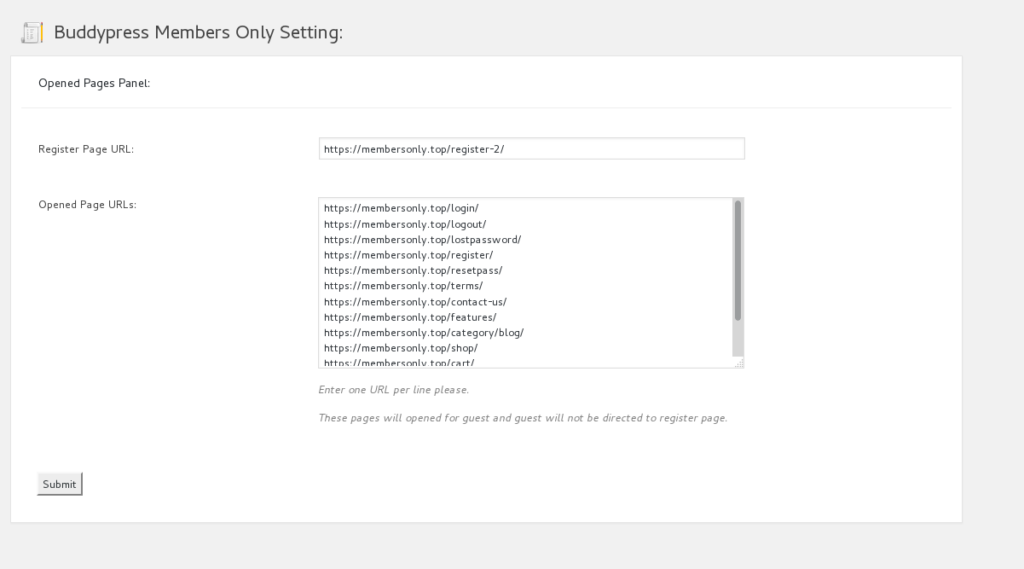
buddypress private network opened pages
All pages listed in opened page URLs option will opened to buddypress non-members users, and if them open other pages, they will be redirected to the “Register Page URL” — of course, you can enter any buddypress membership landing page in this option 🙂
#2 You can open all wordpress posts to guests, and just protect your buddypress pages
In admin area, please click “BP Members Only” menu item, then click optional settings sub menu item, you will open “Buddypress Members Only Optional Settings”:
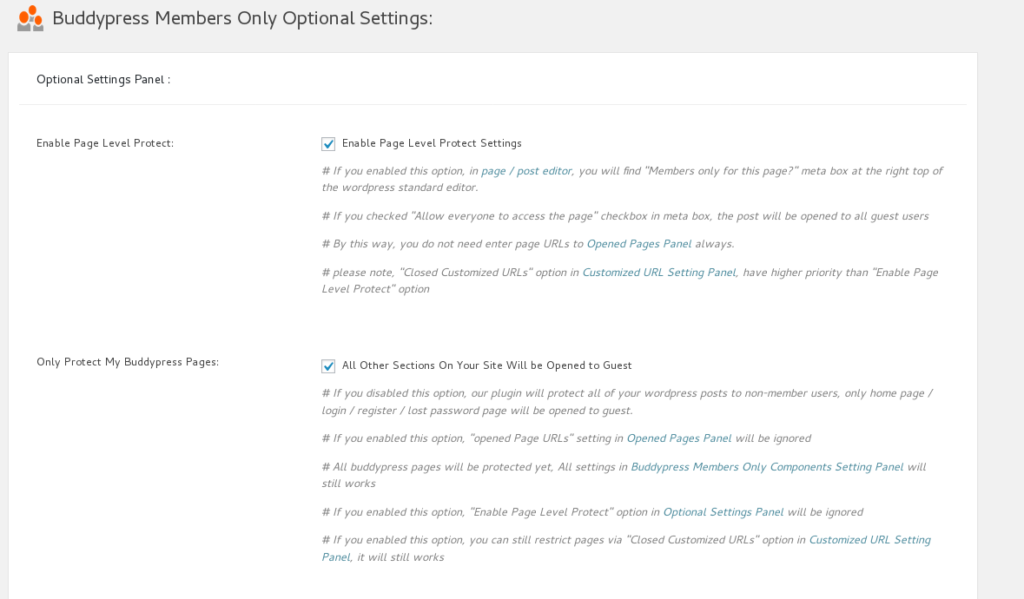
only restrict buddypress private network
Please checked “only protect my buddypress pages” option, then all wordpress posts / pages … and so on will open to users automatically, at the same time, all buddypress pages will be locked, all non-members users can view wordpress pages, but when they want to view buddypress members only pages, they will be redirected to your buddypress membership landing page 🙂
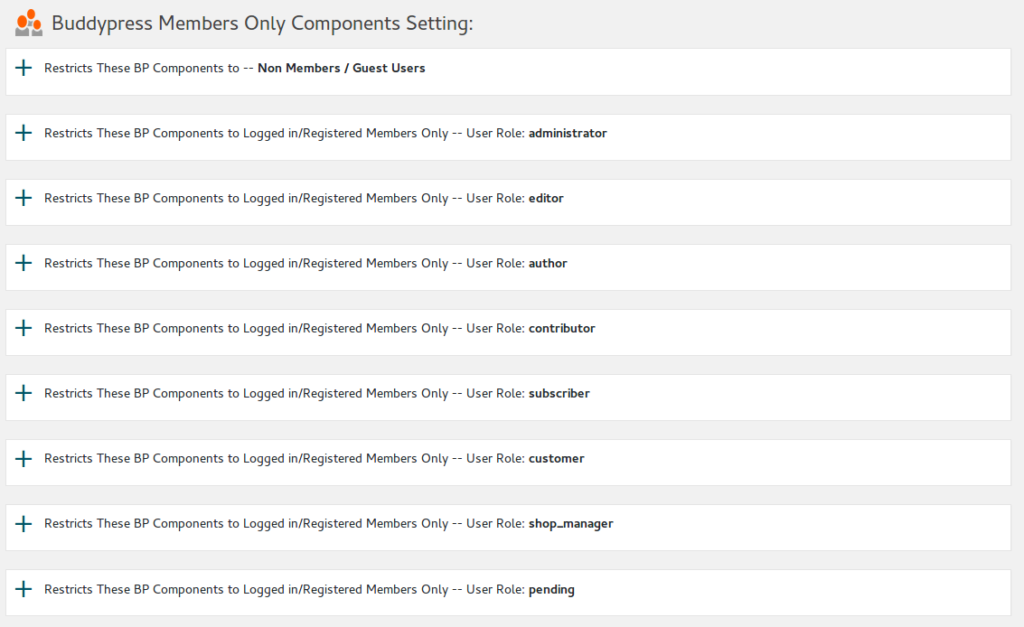
#3 You can open buddypress components to users based on user role
Please click BP Components sub menu item, then you will find you can open all buddypress standard components based on user roles, for example, you can just open front user component to guest, but open members component to subscriber user, and open groups component or friends component to customer users… and so on. 🙂
#4 You even can open customized URLs based on URLs format, or restricts customized URLs based on URLs format
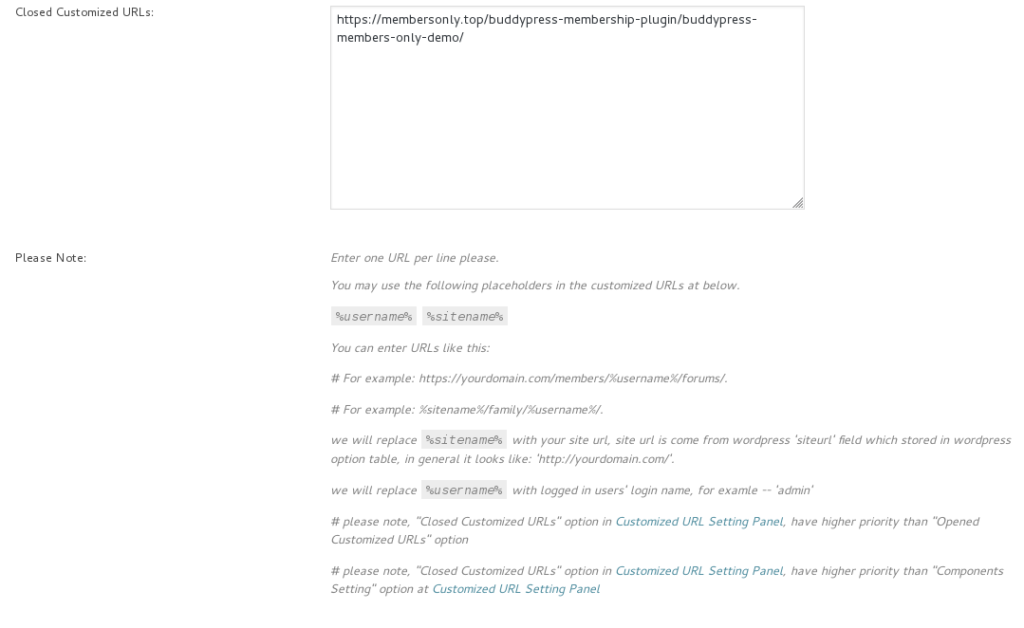
buddypress private network customized URLs
Please click “Customized URL Restricts” sub menu item to open “Buddypress Members Only Customized URL Setting” panel, then you can restricts specified URL based on user roles, for example, you can closed https://yourdomain.com/support only for user role customer,
and you can opened https:yourdomain.com/product for guest user role, support use placeholders %username% and %sitename% to protect your customized URLs pages, this feature is released at buddypress membership pro 3.3.2 based on a few amazing users feature requests.
#5 Restrict wordpress home page
Since buddyrpess members only 3.3.6, in Buddypress Members Only Optional Settings Panel, we added new option “restrict home page”, as you know, in general we will open homepage to guest, but now you can restrict home page to non-member users, if you enabled “restrict home page” option, the homepage will be restricted to guest too, in this case, if guest try to open your home page, they will be redirected to register page or redirect page which you setting at Opened Pages Panel.
Of course, if you do not enable “restrict home page” option, the home page of the site will open to guest
So it is very easy to build a buddypress private network via a few minutes, also we have many other helpful functionality, for example, you can decide redirect URL after login and redirect URL after logout based on user roles.
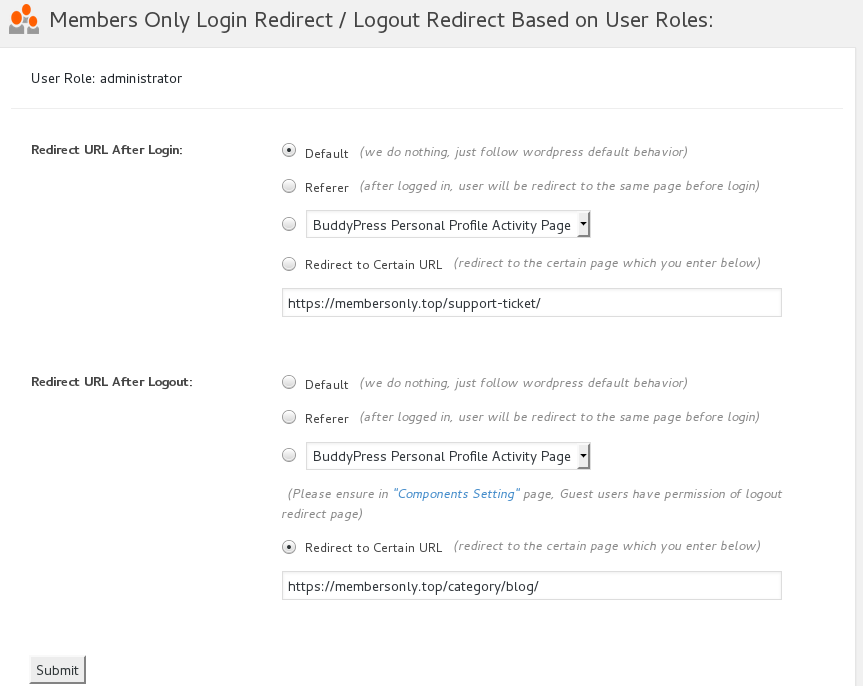
more features for example, one click to create memberships levels, charge membership money with our buddypress woocommerce payment gateway plugin … and so on.
If you have any feature requests, please don’t hesitate to contact us 🙂
Thanks, have a blessed weekend with your family 🙂
Best Regards,
Buddypress Members Only Support Team